Put your lead sheets, lyrics and chord charts in the QSheets folder in iCloud. QSheets shows them full screen on your iPad or iPhone, plays them as a setlist and keeps itself up to date.

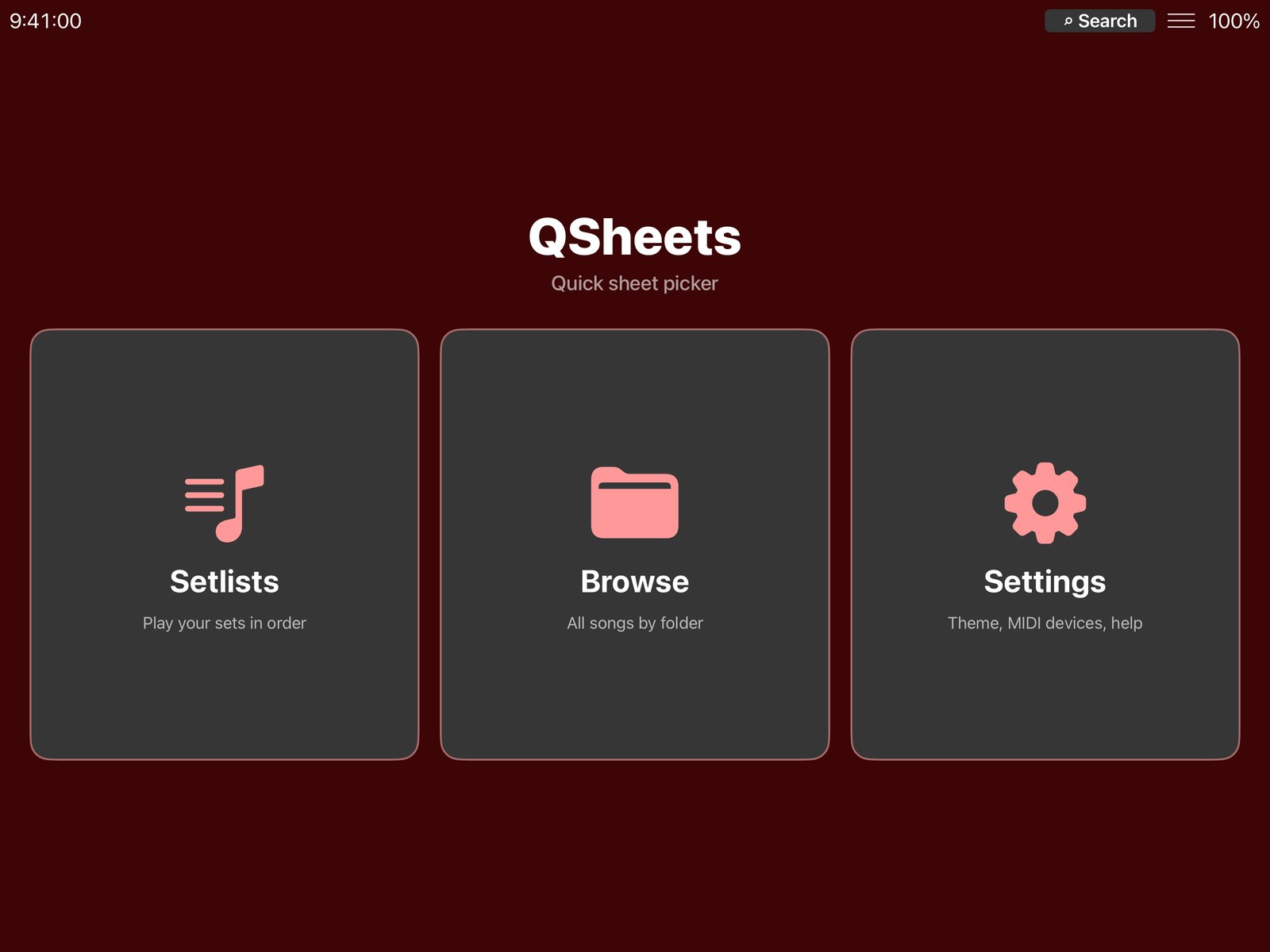
The start screen: play a setlist, browse your folders, or change the settings.
QSheets makes a QSheets folder in your iCloud Drive.
Put .txt, .pdf or .jpg files in it, from your Mac, PC, iPad or iPhone. Folders are fine too.
New and changed files show up by themselves. Tap a song and it fills the screen.
Know the order? Use a setlist. Want to pick songs on the spot? Browse your folders.
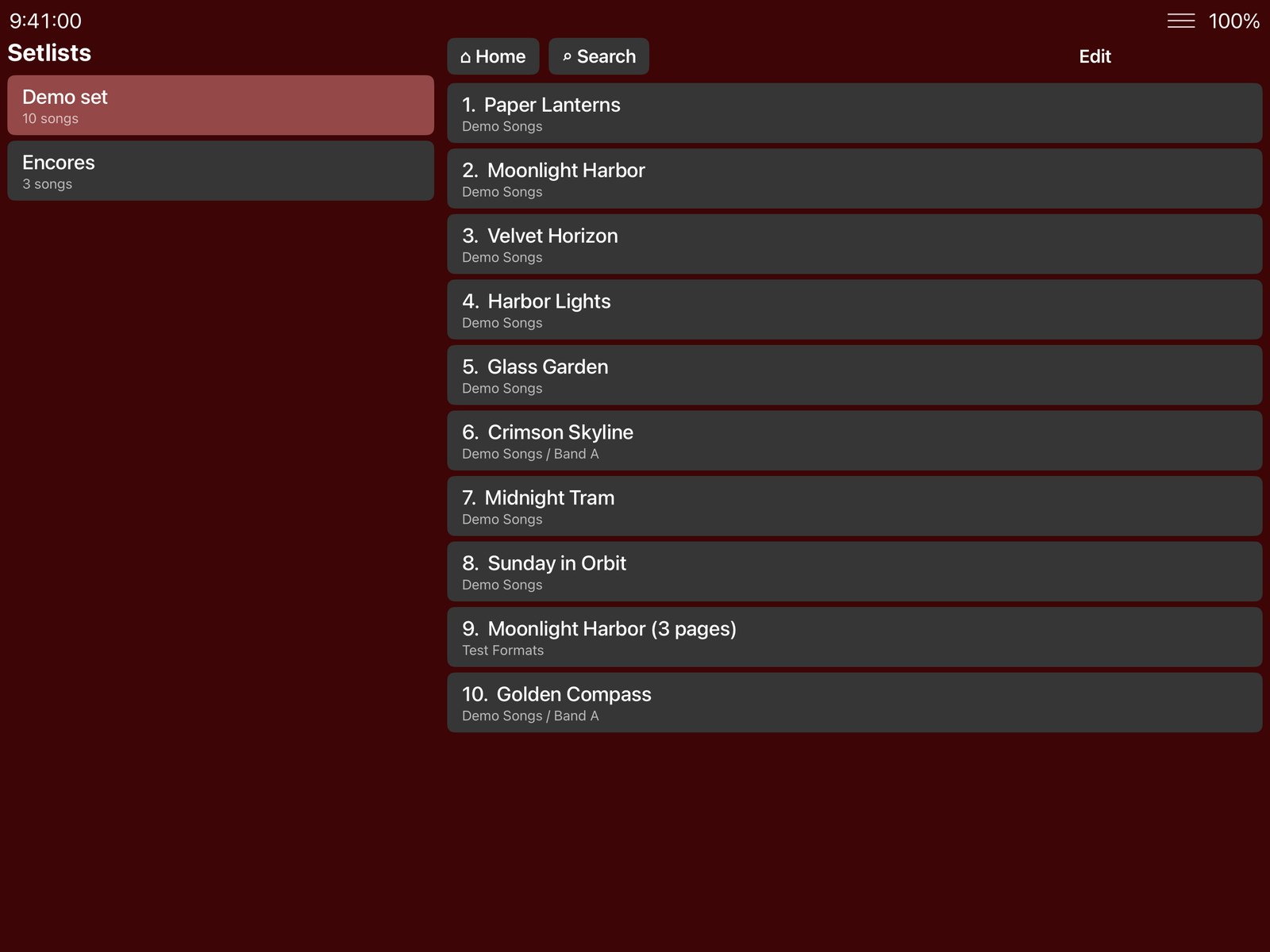
On the start screen. Tap + to make a new setlist and give it a name.
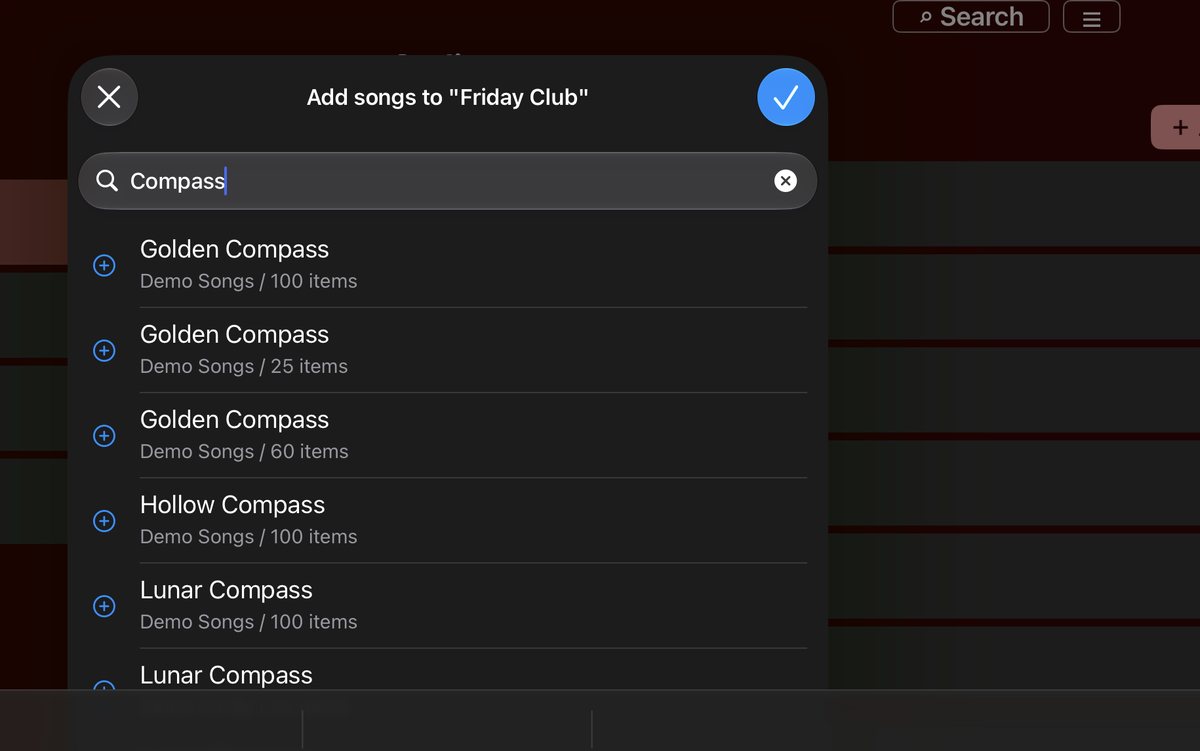
Tap + Add songs, type two letters and tap the songs you want. Drag them into the right order.
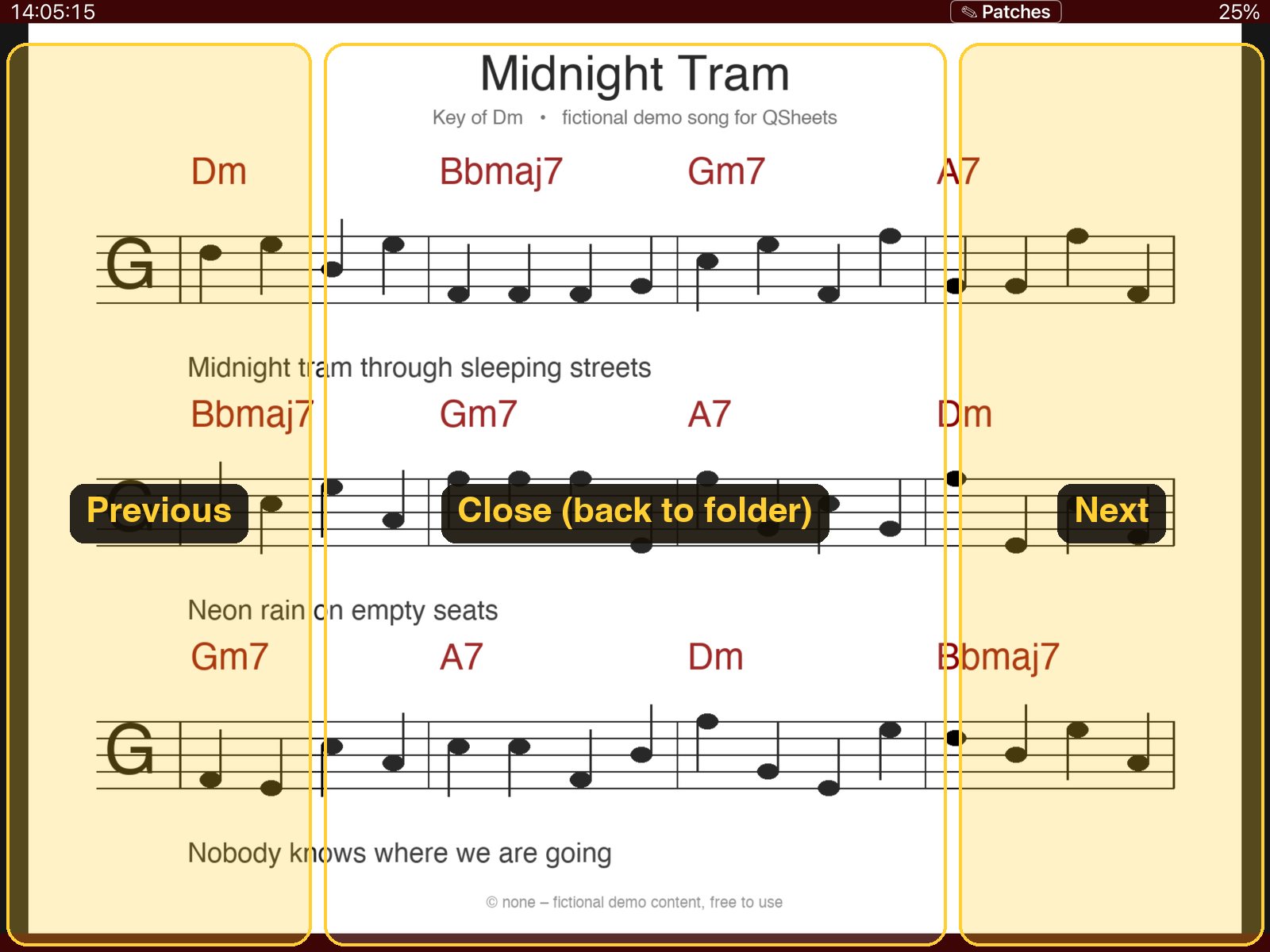
Tap the first song. Tap the right side for the next song, the left side for the previous one, the middle to go back.
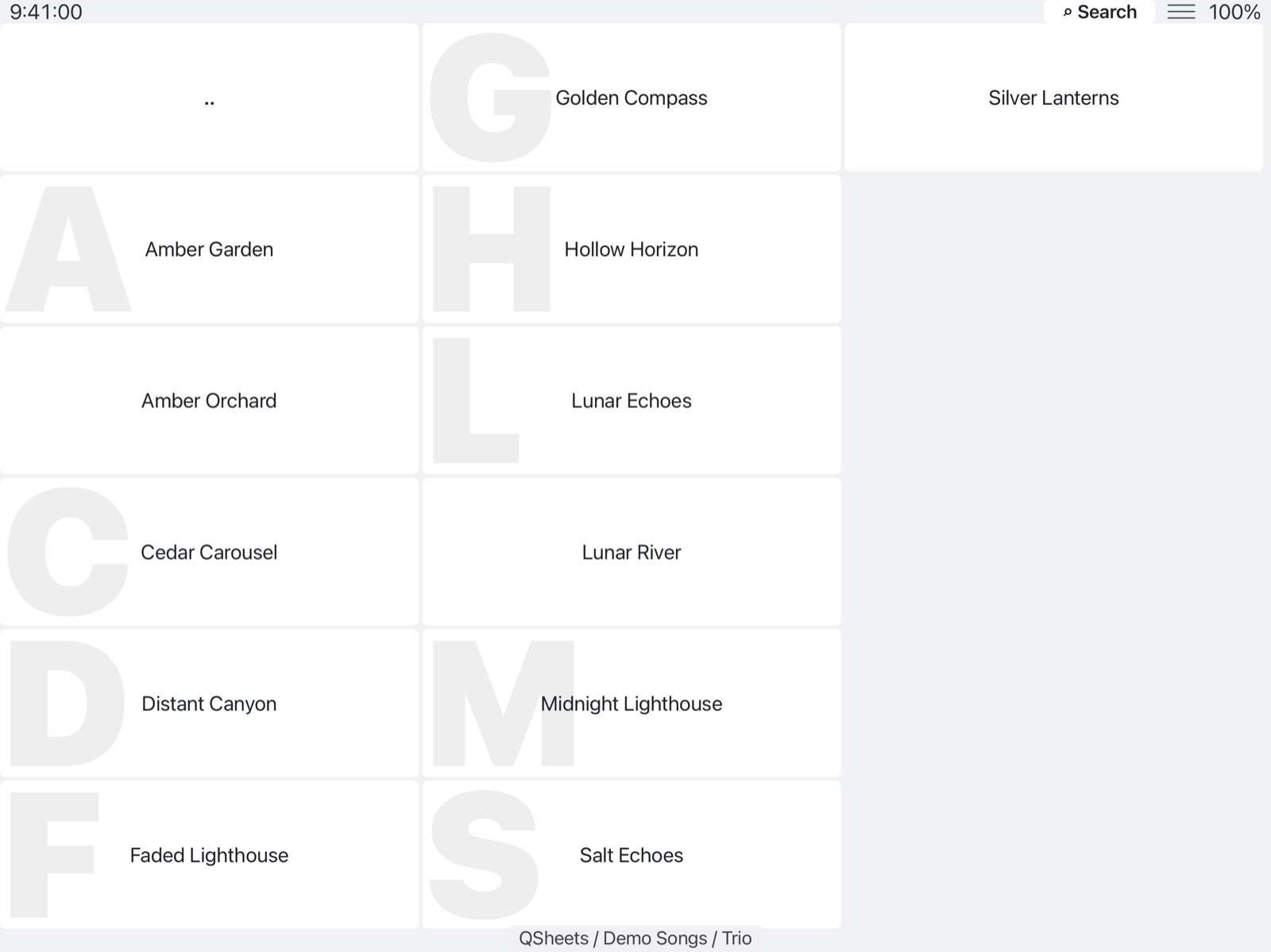
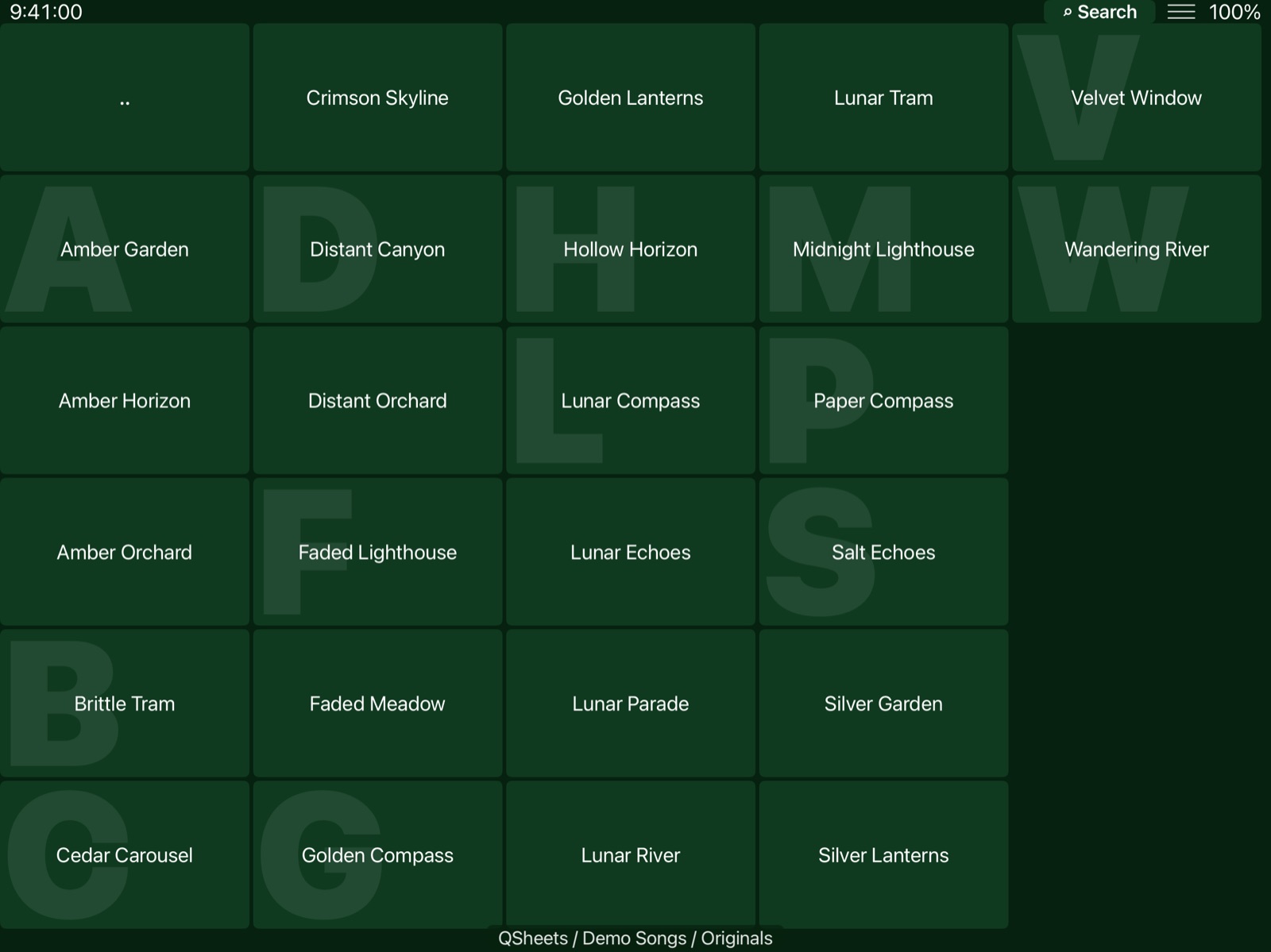
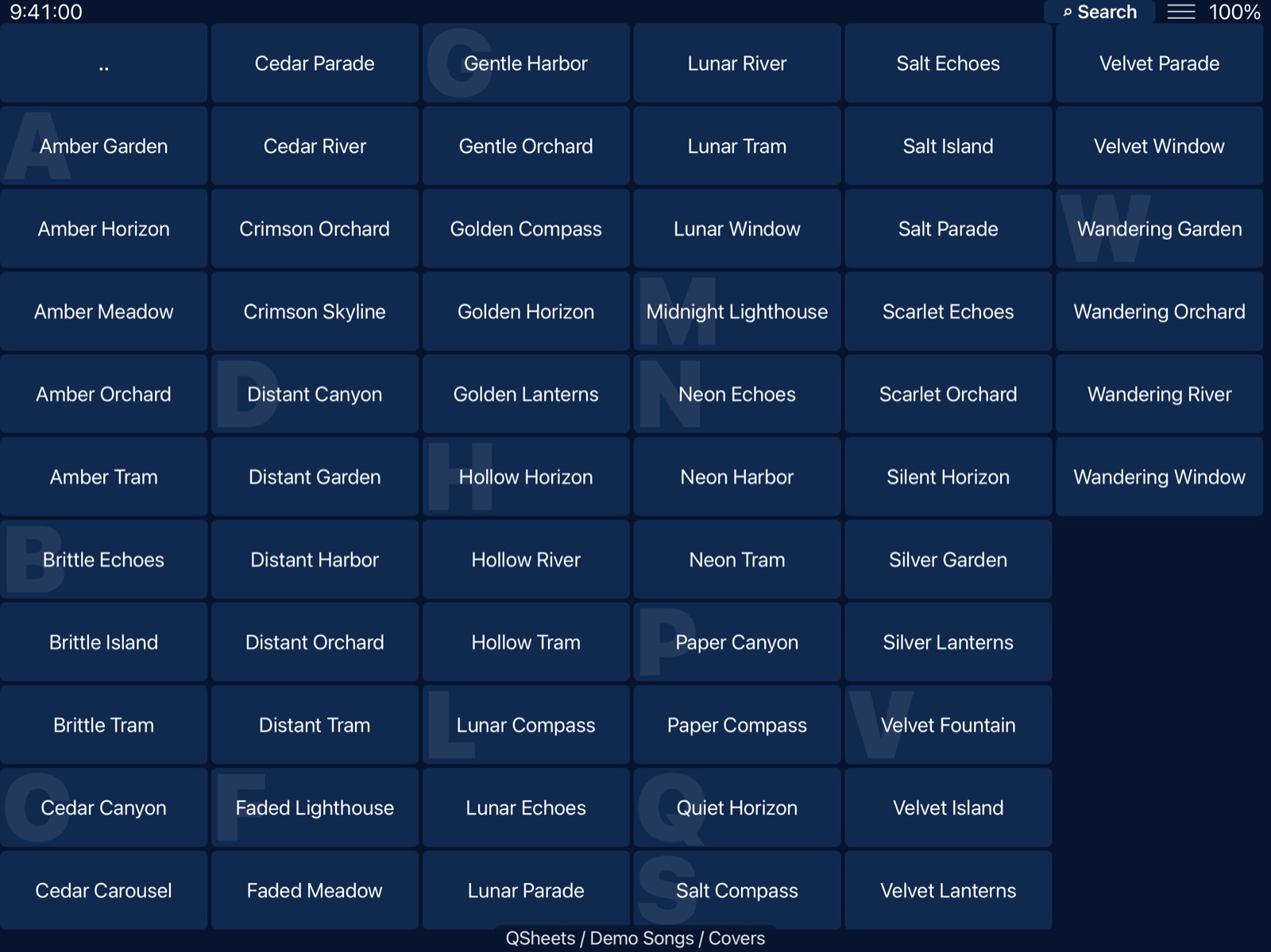
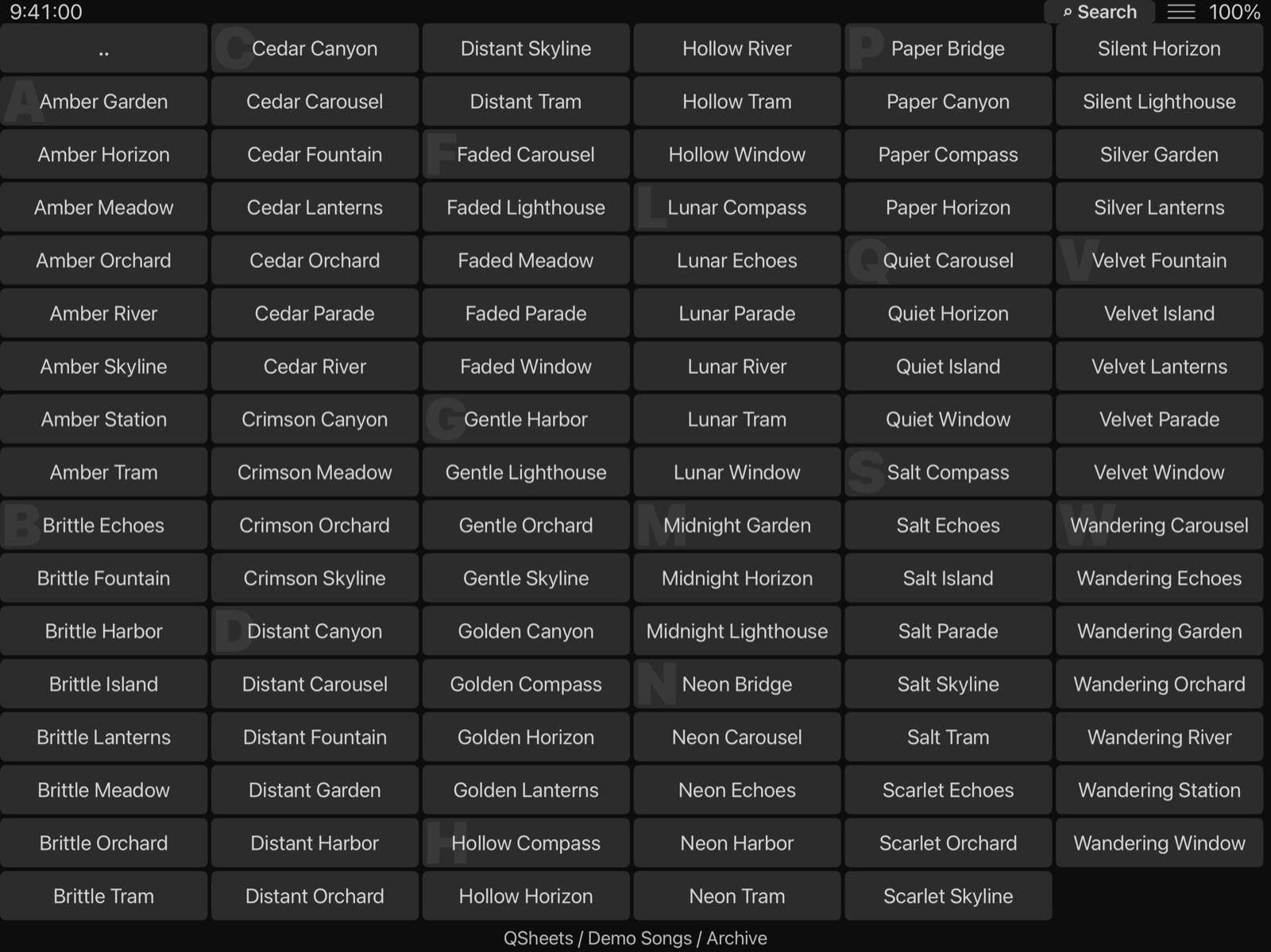
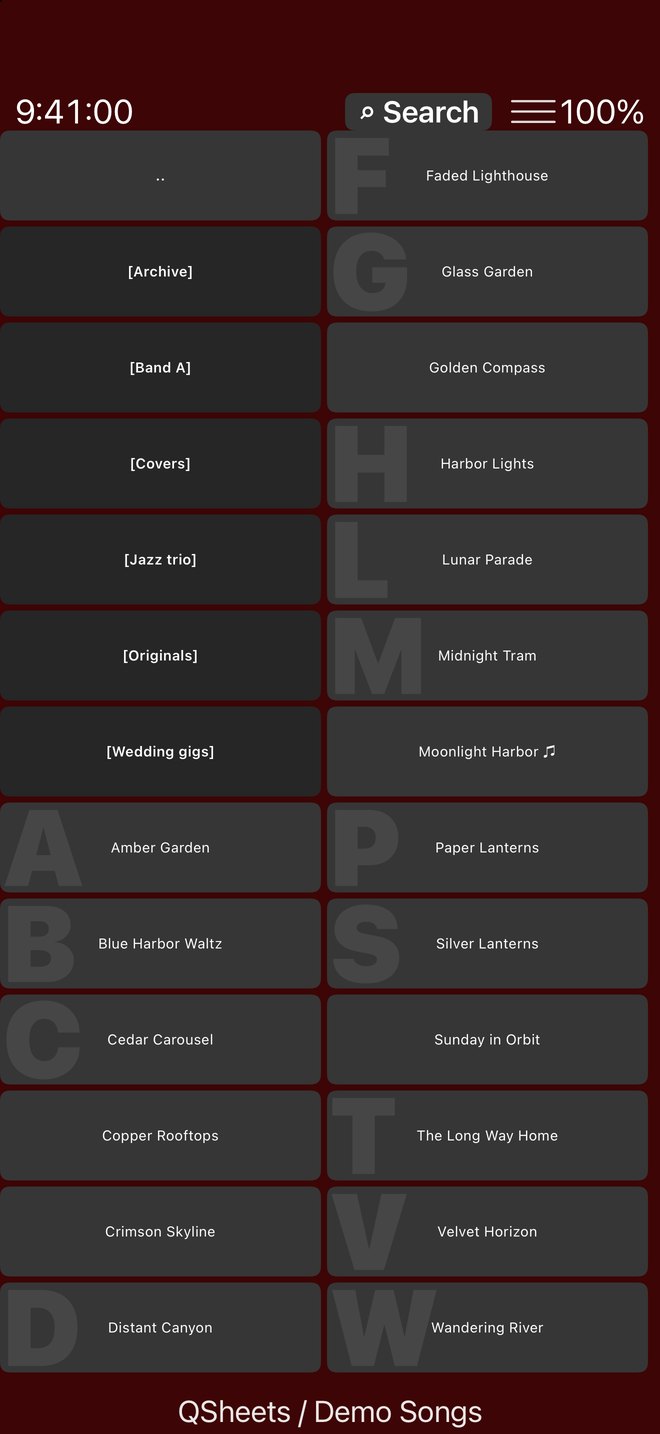
On the start screen. You see every song and folder of your QSheets folder as large buttons.
Folders are shown first, in [brackets]. .. goes one folder up, ⌂ Home back to the start screen.
It fills the screen. Right is the next song in the folder, left the previous one, the middle brings you back.
[brackets].

Even a folder of 100 songs fits on one iPad screen, without scrolling. Choose 1 to 6 columns and one of six colour themes. All songs shown are made up.


Make as many setlists as you like. Setlists are saved in your iCloud folder, so every iPad sees the same sets.


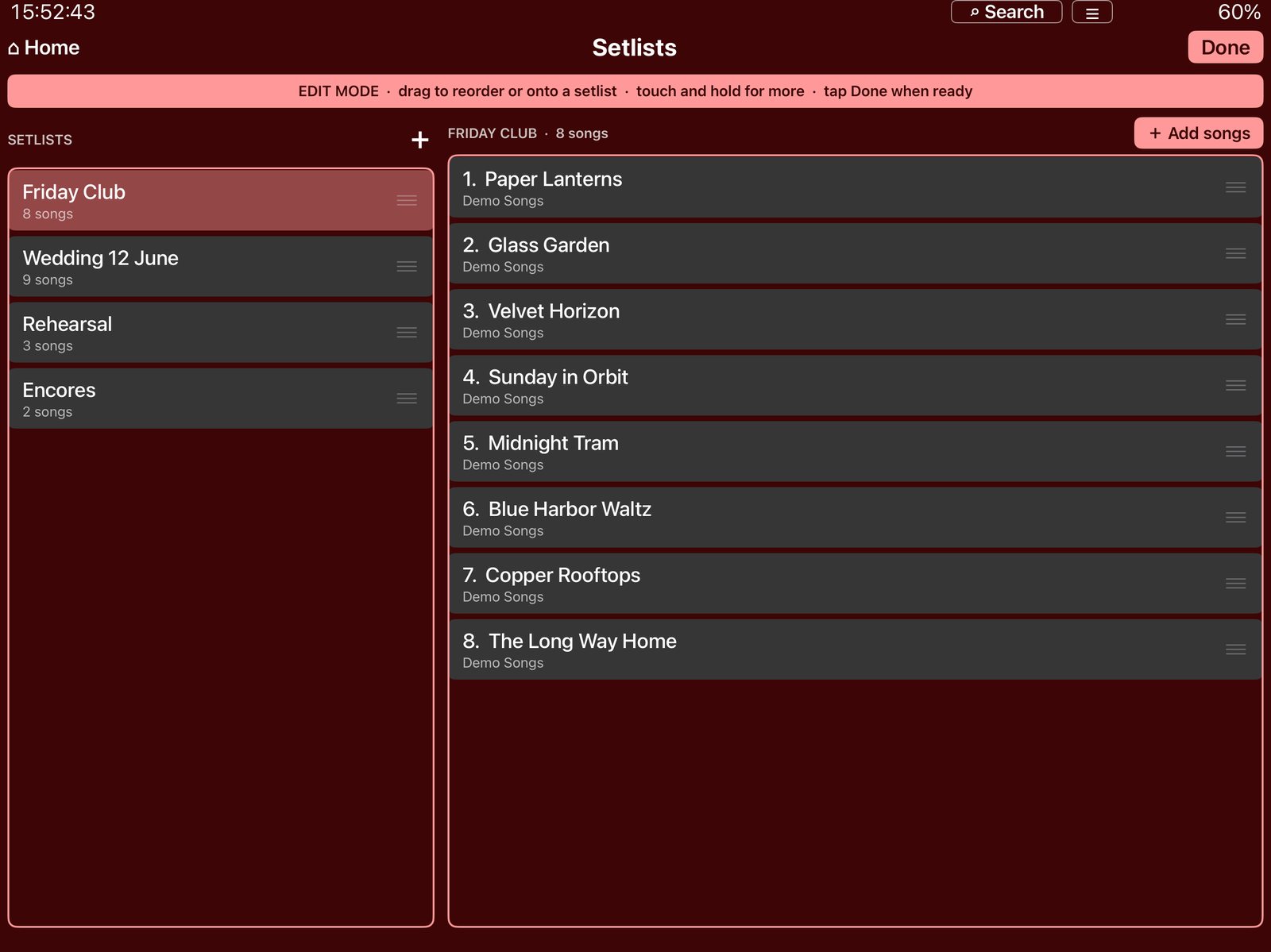
Edit mode: drag handles, a coloured frame and a Done button.

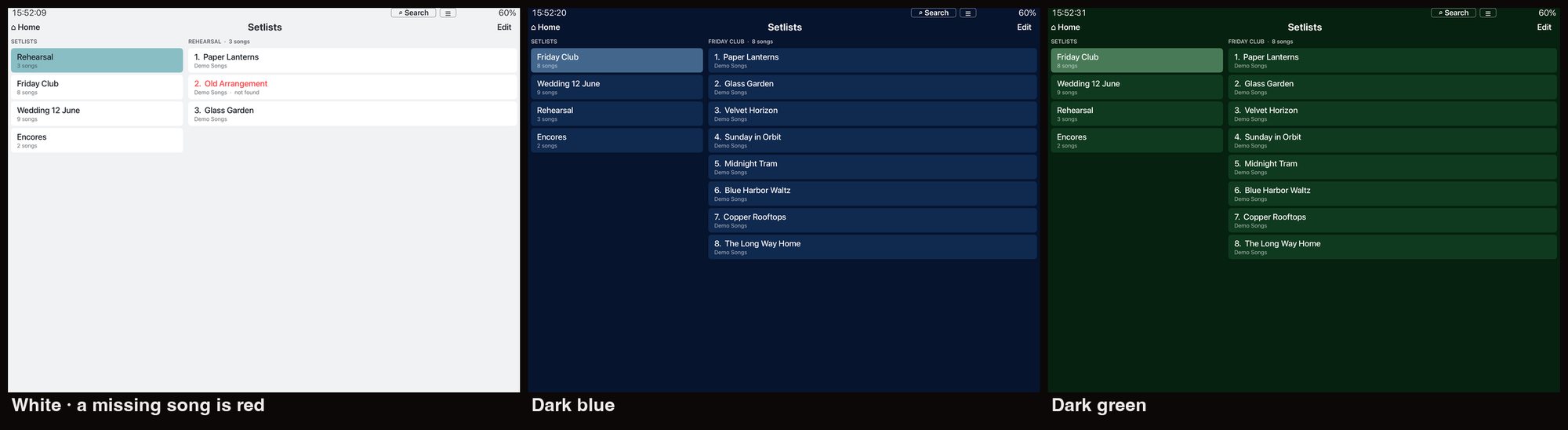
The same screen in three of the six themes.
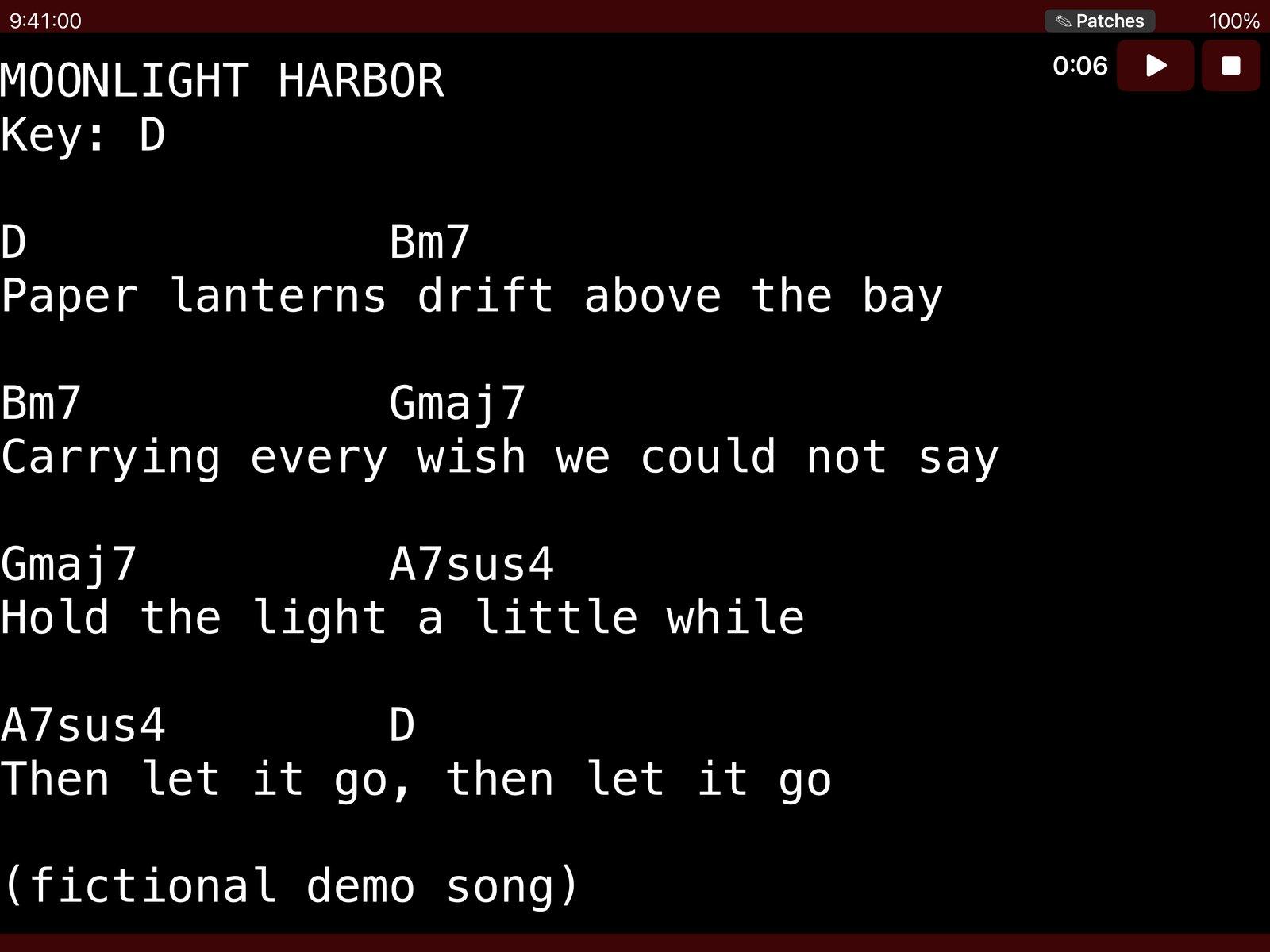
Put an mp3 with the same name next to the sheet (Paper Lanterns.txt + Paper Lanterns.mp3). A ♫ appears on the button, and the sheet gets play/pause and stop buttons with the remaining time. It keeps playing with the screen locked.
QSheets downloads everything in the QSheets folder by itself (Settings → iCloud → Keep all songs downloaded, on by default). iOS can clear downloads when your iPad runs out of space; QSheets fetches them again the next time it starts.

Check the extension (txt, md, pdf, jpg, jpeg, png or heic) and give iCloud a moment to sync. Opening the folder again reloads it.
The file was renamed or moved. Add it to the setlist again with + Add songs. Changing only the MIDI part of the name (between brackets) does not break a setlist.
The mp3 name must match the sheet name exactly, without the MIDI part.
No. With Keep all songs downloaded on, everything is on the iPad.
No. QSheets does not collect any personal information. Your files stay in your own iCloud Drive.

QSheets is available for iPad and iPhone on the App Store.
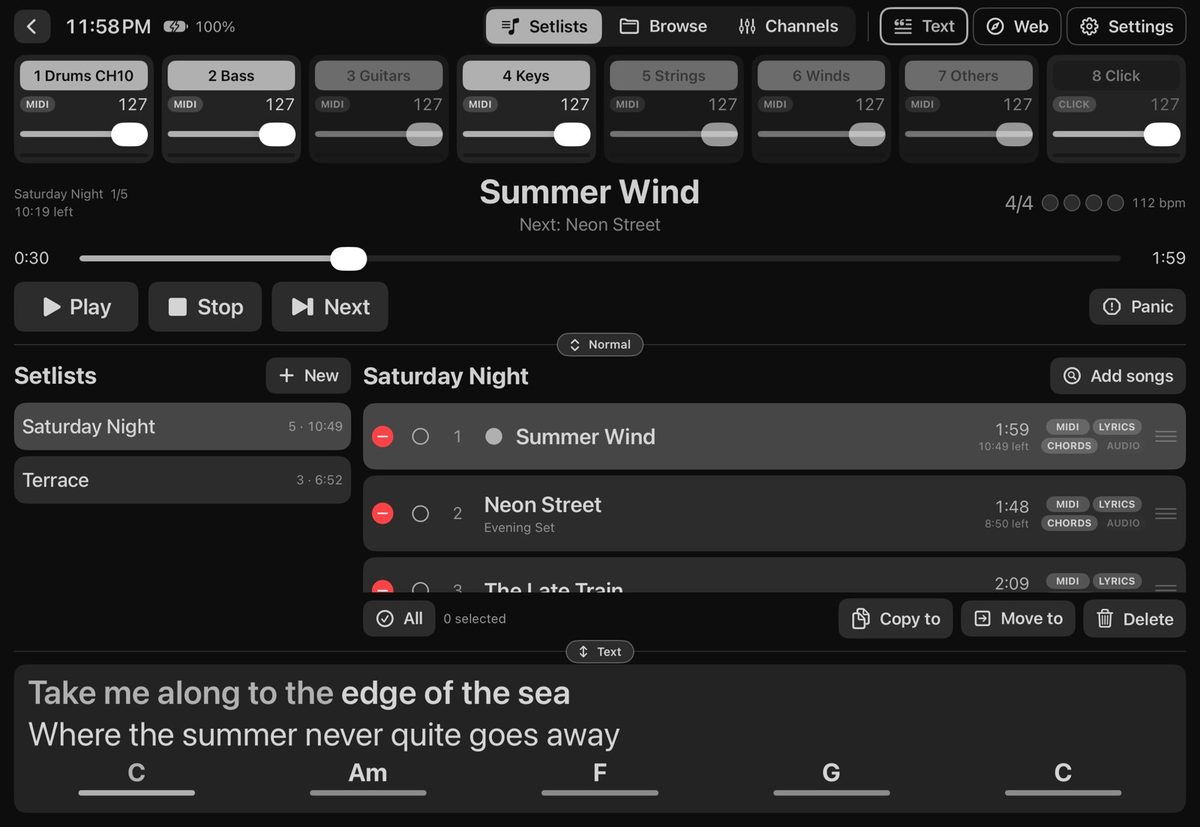
The whole show on one iPad, no laptop needed: audio and MIDI playback, AUv3 instruments and effects, a built-in SoundFont sound, and MIDI out to other iPad apps and external modules. With setlists, and lyrics and chords for the whole band.
Visit the Merik website →
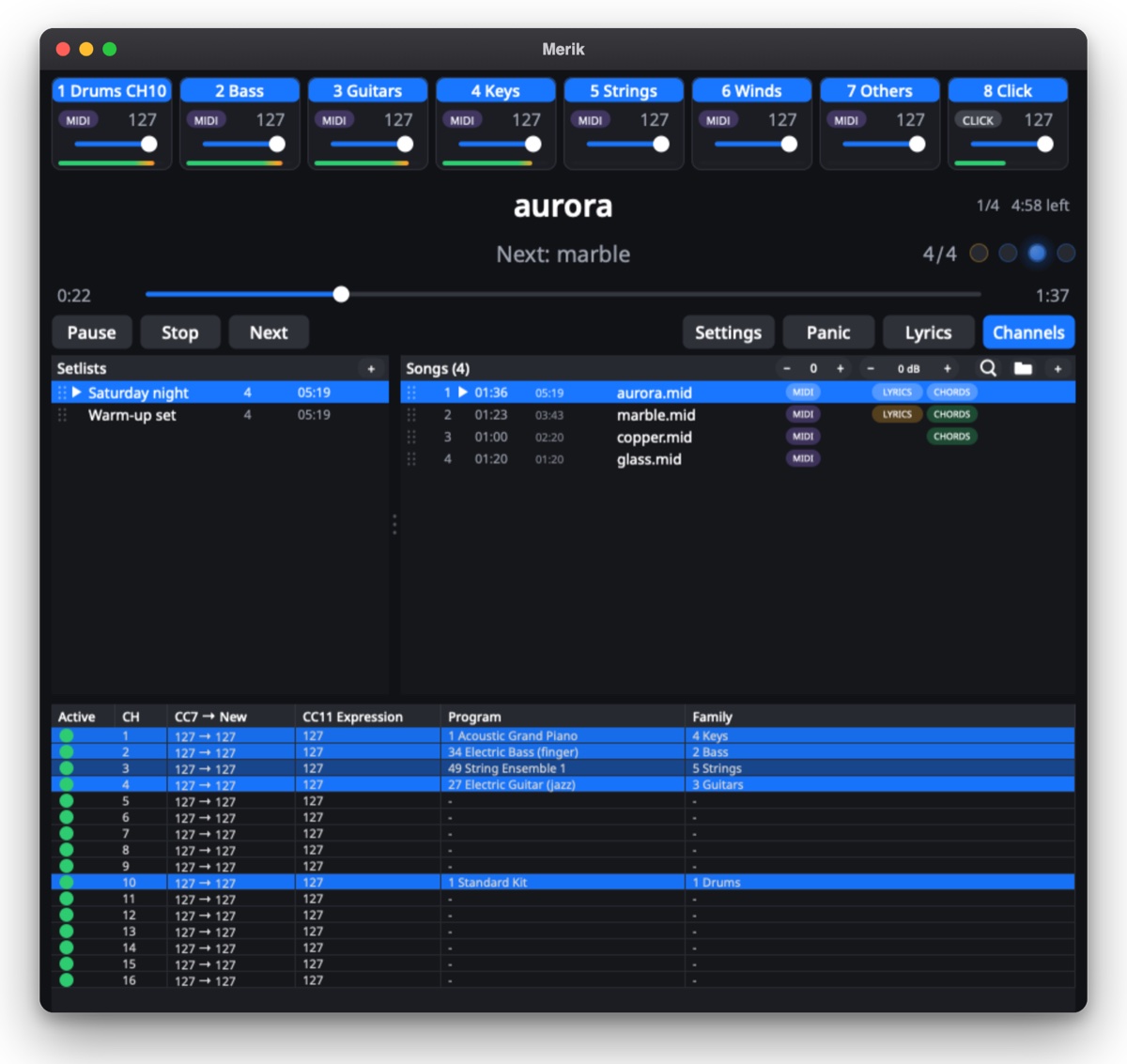
Live MIDI and audio backing-track player for the stage, with setlists, a live mixer, and lyrics and chords for the whole band on any tablet or phone.
Visit the Merik2 website →
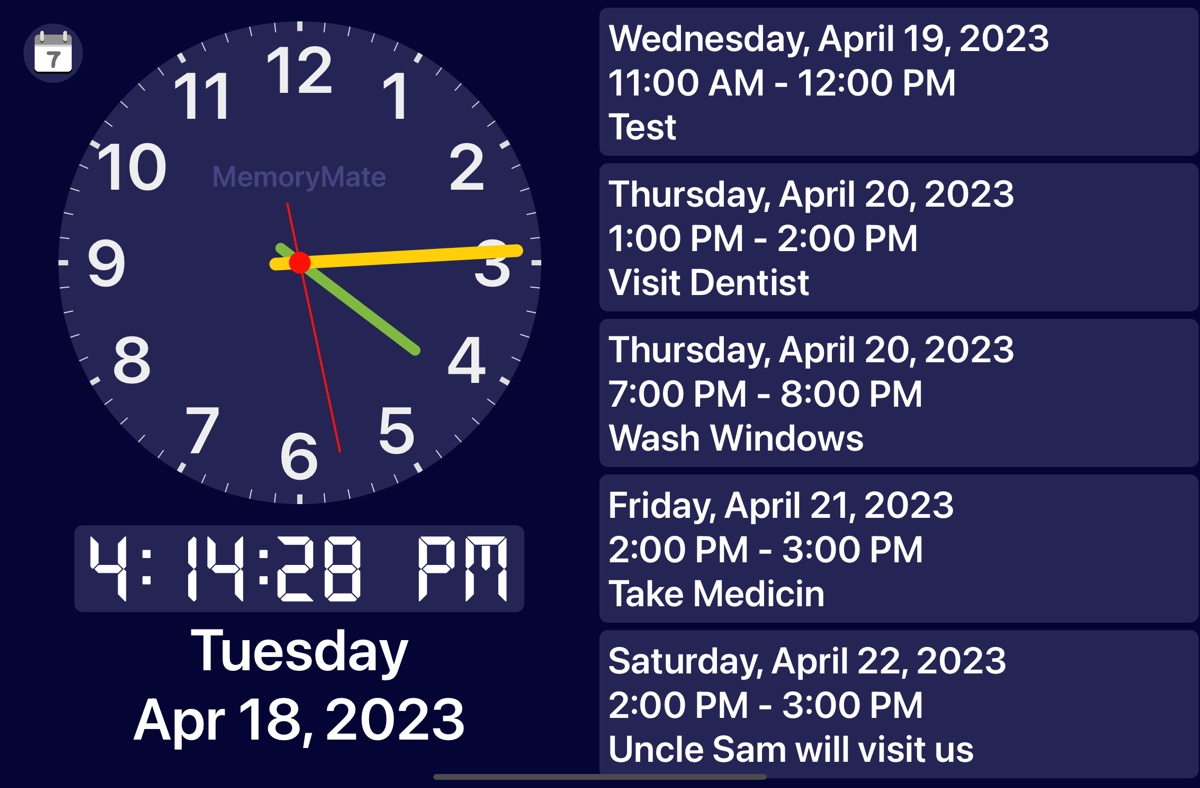
Calendar clock for seniors and people with dementia: a large clock, the date and the coming events, without ads.
Visit the MemoryMate website →